
Your users can reserve items on your website. Be sure you have reservations enabled in the settings.
To create a reservation:
1. Ensure you are logged in
2. Browse or search the inventory on your public myTurn site
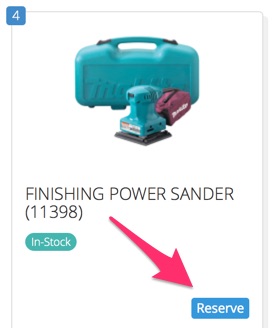
3. Click "Reserve" on an item:
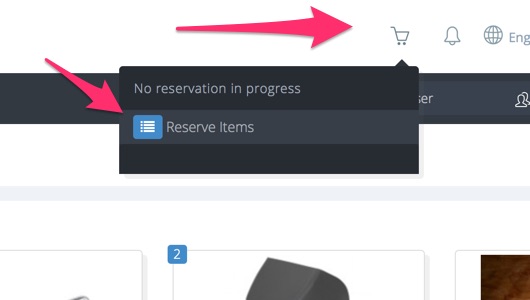
3b. Or click on "Start Reservation" in the cart at the top of the page:
4. Select the dates for your reservation
5. If you want to reserve additional items, you can click "Add Items" where you can browse and additional item and then click on the "Cart" button when you are ready to review and submit your reservation:
6. Otherwise click "Cart" to view your cart and submit your reservation.
7. In the reservation cart, you can adjust quantities of items needed. If too many are requested, the cart will adjust the value to the maximum available during that time period, the maximum number of items you're allowed to reserve, and/or the maximum value of the items you can have out at one time.
8. Leave any notes about the reservation
9. Click Submit Reservation
10. The "reservation email" address will be emailed that there is a new reservation.
As of December 2021, you can also specify Fulfillment Methods like Shipping and Delivery.
NOTE: if you are creating a reservation as a user with the "Loans" or Super User administrative privileges, you can override closed days, holidays, and overbook reservation time slots and appointments.
Comments
0 comments
Please sign in to leave a comment.